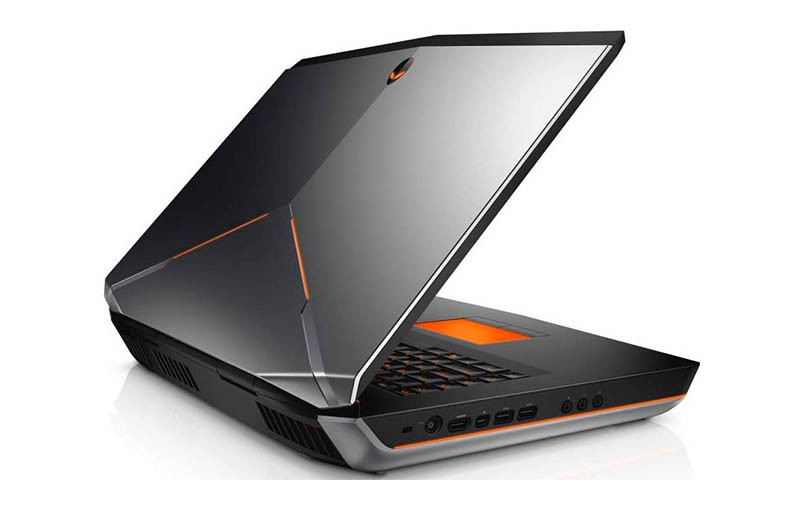
Heres how I could get my Alienware 17 working on Ubuntu –
- Connect the machine to Internet using a LAN cable.
- Change these after entering BIOS setup
- Set boot mode to Legacy
- Bring up the priority of the USB drive above hard disk in boot device list.
- Save and restart.
- Install Ubuntu from a USB stick.
- After booting to newly installed Ubuntu –
- Install Wifi
- Open Terminal
- sudo apt-get upgrade
- yeah that’s it. Atheros Qualcomm Killer Wifi driver would now be installed.
- Restart the system, look for Wifi icon in status bar to verify.
- Install NVidia GeForce Graphics card driver
- Open Terminal
- sudo add-apt-repository ppa:graphics-drivers/ppa
- sudo apt-get update
- sudo apt-get install nvidia-358 nvidia-settings ( nvidia-358 was the latest version when I installed. Please find the current version from here )
- Restart, verify if “GeForce GTX ** ” is shown as the Graphics card in “About This Computer” dialog.
- Fix issue with headphones not working –
- Open Terminal
- alsamixer
- Press F6
- Select “HDA Intel PCH” card
- Press right arrow till the Item shown is “HP/Speaker Auto Detect”
- Press M to set it on.
- Connect headphones and verify if it works.
- Install Wifi
Your Linuxed Alienware should now be up with sound, graphics and Wifi and Bluetooth working without issues.
References :
https://bugs.launchpad.net/ubuntu/+source/linux/+bug/1383184
https://launchpad.net/~graphics-drivers/+archive/ubuntu/ppa
http://askubuntu.com/questions/477933/audio-not-playing-through-headphones

Sreekumar (KJ) has been a hobby programmer from school days. Codemarvels is his personal blog from the year 2010, where he writes about technology, philosophy, society and a bit about physics.
He now runs a conversational AI company – DheeYantra – focusing his efforts to help businesses improve operational efficiency using digital employees powered by AI.