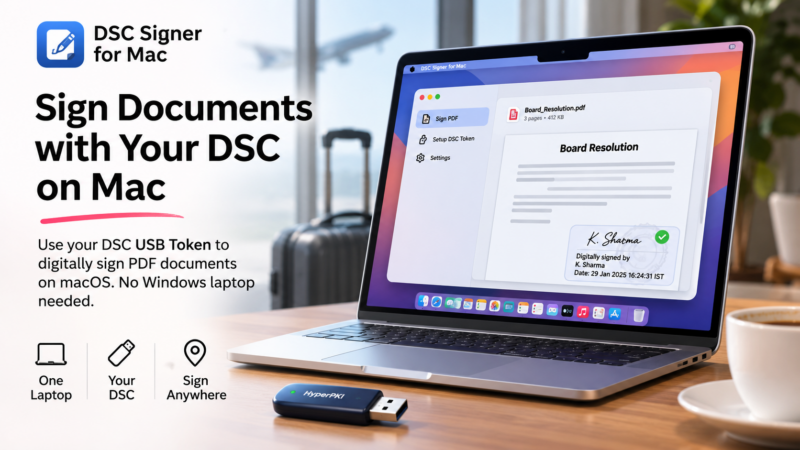
If you are a company director in India, you probably know this problem.
You are travelling. You have your MacBook with you. You are getting some work done, attending meetings, responding to emails, and generally enjoying the convenience of carrying just one laptop.
And then, out of nowhere, someone sends you a document that needs your Digital Signature Certificate (DSC).
You take out your DSC USB token, plug it into your Mac, open Adobe Acrobat, and realise that you are in trouble.
The token works perfectly fine on Windows. But getting it to work on macOS is an entirely different story.
You might have to find a Windows machine, borrow someone’s laptop, or postpone signing the document until you get back to your office.
For company directors, this is not an entirely hypothetical situation. Board documents, agreements, financial approvals and other business paperwork can come up for signing at rather unpredictable times.
I have run into this inconvenience myself, and decided to do something about it.
Introducing DSC Signer for Mac
I built DSC Signer for Mac, a small macOS application that allows you to sign PDF documents using your Indian DSC USB token, without needing a Windows laptop.
The idea is simple.
You already carry your MacBook. Why should you need another laptop just because your DSC token and its associated software are primarily designed for Windows?
DSC Signer bridges this gap.
It communicates with compatible DSC hardware tokens through their PKCS#11 interface, allowing the signing operation to happen directly on macOS.
No Windows machine. No need to transfer documents to another computer. No unnecessary detours.
Just plug in your DSC token, open the PDF, sign it and get on with your work.
How does it work?
Most hardware-based Digital Signature Certificates use cryptographic USB tokens to securely store the private key.
The signing operation is performed by the hardware token itself. The private key is not supposed to leave the device.
The challenge on macOS is usually the software layer that communicates with these tokens.
Many DSC token vendors provide Windows-oriented middleware and drivers. Even when a compatible macOS PKCS#11 library is available, applications such as Adobe Acrobat can run into compatibility and sandboxing restrictions.
This is where DSC Signer takes a different approach.
Instead of relying on Adobe Acrobat to communicate with the token, the application communicates with the token through its PKCS#11 library and handles the PDF signing workflow itself.
The result is a digitally signed PDF that can be validated using Adobe Acrobat Reader and other compatible PDF viewers.
Features
Here are some of the things I have implemented.
1. Hardware-based digital signing
The application communicates directly with your DSC USB token through its PKCS#11 library.
It has been tested with HyperPKI HYP2003, commonly associated with ePass2003 tokens, using an Indian CCA-chain Class 3 signing certificate.
Other PKCS#11-compatible tokens can also be configured by pointing the application to their vendor-provided macOS library.
2. Acrobat-style visible signatures
I wanted the resulting document to look familiar to anyone who regularly signs PDFs using Adobe Acrobat.
You can visually position the signature on the document by drawing a rectangle on the page.
The signature preview includes the signer’s name in a cursive font over a faint seal, with the signing details alongside it.
You can move and resize the signature box before signing.
You can also provide an optional signing reason and location.
3. Standard PDF digital signatures
The application generates standard PAdES/PKCS#7 digital signatures using SHA-256.
It also supports optional RFC 3161 trusted timestamps.
The resulting document can be opened and validated in Adobe Acrobat Reader and other compatible PDF viewers.
4. Multiple signatures
Need more than one person to sign the same document?
You can sign an already signed PDF again.
Each subsequent signature is added as an incremental PDF update, preserving the earlier signatures.
5. Security and privacy
This is particularly important when dealing with company documents.
I have designed the application around a few straightforward security principles:
- Your DSC private key never leaves the hardware token.
- Your token PIN is never stored or logged.
- The PIN is held in memory only while the signing operation is in progress.
- The application reads the certificate directly from the token.
- The document itself is never uploaded to an external service.
If you enable trusted timestamping, the application sends a cryptographic hash of the signature to DigiCert’s timestamping service. It does not send the PDF document.
I believe these are important properties for any application dealing with digital signatures.
How to install DSC Signer on your Mac
Getting started is fairly straightforward.
Step 1: Download the application
Visit the GitHub repository:
Download the latest macOS ARM64 DMG package from the Releases section.
Step 2: Install
Open the downloaded DMG file and drag DSC Signer into your Applications folder.
The application currently targets Apple Silicon Macs running macOS 12 or later.
Step 3: Allow the application to run
The current release is not notarised by Apple. On the first launch, macOS may block it.
Open System Settings, navigate to Privacy & Security and select Open Anyway for DSC Signer.
Step 4: Set Up Your DSC USB Token
This is probably the only step that might require a little patience, but don’t worry. DSC Signer makes it quite straightforward.
Unlike an ordinary USB pen drive, a DSC token is a cryptographic device. It needs a small piece of software, called a driver, to communicate with your Mac.
If you have previously used your DSC token on Windows, you might already be familiar with installing token drivers. The same concept applies here, except that we need the macOS version of the driver.
The good news is that you don’t have to hunt for drivers or configure anything manually. DSC Signer guides you through the entire process.
4.1 Plug in your DSC USB token
Connect your DSC token to your Mac.
If your MacBook doesn’t have a USB-A port, you might need a USB-C adapter.
Open DSC Signer. The application will attempt to identify your token and display its make and model.
For example, my Hypersecu HyperPKI HYP2003 token is recognised automatically.
4.2 Let DSC Signer find the driver
The first time you open the application, it presents a dedicated Set up your DSC token window.
It walks you through three steps, displaying a green indicator as each step is completed.
The first step is connecting your token. The second is installing the appropriate driver.
Click Download the driver.
DSC Signer will take you to the manufacturer’s official driver download page whenever it knows the correct location. For other tokens, it searches the web for the appropriate Mac driver.
For my Hypersecu HyperPKI token, it directs you to:
https://hypersecu.com/updates-india
Download the macOS-compatible driver.
An important note: Make sure you download a driver compatible with Apple Silicon Macs (M1, M2, M3, M4 and newer), rather than an older Intel-only version.
4.3 Install the downloaded driver
Once the download finishes, DSC Signer displays an Open the downloaded installer button.
Click it to launch the installer.
Follow the installation wizard. In most cases, this simply involves clicking Continue, accepting the installation and entering your Mac login password when requested.
This is the same password you use to unlock your Mac, not your DSC token PIN.
Once the installation completes, return to DSC Signer.
You don’t need to locate the driver file, copy its path or edit any configuration files. The application automatically detects the newly installed driver.
4.4 Verify that your token works
The final step is to verify that DSC Signer can actually communicate with your token.
The application checks whether it can access the token and read the digital certificate stored inside it.
Once successful, the setup indicator turns green.
That’s it! Your DSC token is ready to use.
What if the token isn’t detected?
Sometimes macOS’s built-in smart card service can get stuck, even when the USB device is physically connected.
DSC Signer includes a Reset token connection option for this situation. It will ask for your Mac password, restart the relevant macOS service and guide you to unplug and reconnect the token.
You don’t need to open Terminal or execute any commands.
A note about other DSC tokens
I have tested DSC Signer with the Hypersecu HyperPKI HYP2003 token.
The application is designed to work with other PKCS#11-compatible DSC tokens as well, provided their manufacturers supply drivers compatible with Apple Silicon Macs.
This includes tokens such as ePass2003, Watchdata ProxKey, mToken, SafeNet eToken and Trust Key. However, these additional models have not all been tested by me.
If your token manufacturer provides a compatible Mac driver, there’s a good chance you can get it working too.
Once the initial setup is complete, you won’t have to repeat these steps every time you sign a document. Just plug in your token and launch DSC Signer.
Step 5: Sign your first PDF
Plug in your DSC token.
Open DSC Signer and select your PDF document.
The application will detect the certificate on your token and display the certificate holder’s name and expiry date.
Draw the signature box where you want the signature to appear.
Click Sign, enter your DSC PIN and save the signed document.
That’s it!
Who would find this useful?
I particularly think this will be useful to:
- Company directors who regularly need to sign business documents using their DSC.
- Founders and entrepreneurs who travel frequently.
- Chartered accountants and finance professionals who work with digitally signed documents.
- Legal professionals who need to sign PDF agreements.
- Professionals who prefer macOS but are required to use Indian DSC hardware tokens.
If you are someone who carries a MacBook everywhere but occasionally finds yourself needing a Windows machine just to digitally sign a PDF, this project might save you quite a bit of inconvenience.
Open Source
I have released DSC Signer for Mac under the MIT License.
The source code is available on GitHub, and I welcome contributions, feedback and suggestions.
GitHub repository: https://github.com/technologistkj/dsc-pdf-signer-for-mac
If you use a different DSC token, I would particularly appreciate feedback on compatibility. The application is designed to support other PKCS#11-compatible tokens, but I would like to test it with more hardware and vendor drivers.
Carry your Mac. Keep your DSC token. Sign your documents wherever you are.
Happy signing.

Sreekumar (KJ) has been a hobby programmer from school days. Codemarvels is his personal blog from the year 2010, where he writes about technology, philosophy, society and a bit about physics.
He now runs a conversational AI company – DheeYantra – focusing his efforts to help businesses improve operational efficiency using digital employees powered by AI.