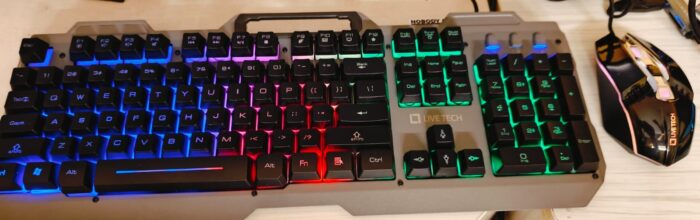
To enable the back light LEDs of the Live Tech keyboard in Ubuntu follow these steps
sudo apt install brightnessctl
sudo brightnessctl -ls #note the scrolllock input with a suffix greater than 5
sudo brightnessctl --device input16::scrolllock s 1 #Assuming the suffix is 16
This should light up the LEDs in the Keyboard.
Link Keyboard Lighting Script to a Function Key
Want to control your keyboard backlight with a simple function key? Follow ahead.
Step 1: Create the Keyboard Lighting Script
- Open Terminal
- Create the script:
vi ~/lightupKeyboard.sh - Add the following content:
pkexec brightnessctl --device input16::scrolllock s 1 >> /tmp/lightupKB.log 2>&1 - Save and exit
- Make the script executable:
chmod +x ~/lightupKeyboard.sh
Step 2: Link to a Function Key
- Open Keyboard Shortcuts Settings:
- On GNOME:
Settings > Keyboard > View and Customize Shortcuts - On KDE:
System Settings > Shortcuts
- On GNOME:
- Create a New Shortcut:
- Name:
Light Up Keyboard - Command:
bash ~/lightupKeyboard.sh
- Name:
- Assign a Key: Press the desired Function Key (e.g., F6) when prompted.
- Save and Close Settings.
Press the assigned function key to turn on your keyboard lighting. You will also see a log entry in /tmp/lightupKB.log for each press.

Sreekumar (KJ) has been a hobby programmer from school days. Codemarvels is his personal blog from the year 2010, where he writes about technology, philosophy, society and a bit about physics.
He now runs a conversational AI company – DheeYantra – focusing his efforts to help businesses improve operational efficiency using digital employees powered by AI.